
You can upload any images in the site settings of the Openmall platform.
There are many ways to find images on the internet.
First. You can use our Gallery of ready-made images. To do this, go to the Openmall Admin Panel and open the menu Settings – Gallery (or use the link – https://openmall.biz/admin/pictures). There you will already find several ready-made images and you can copy their links and paste them into the required fields in the site settings.
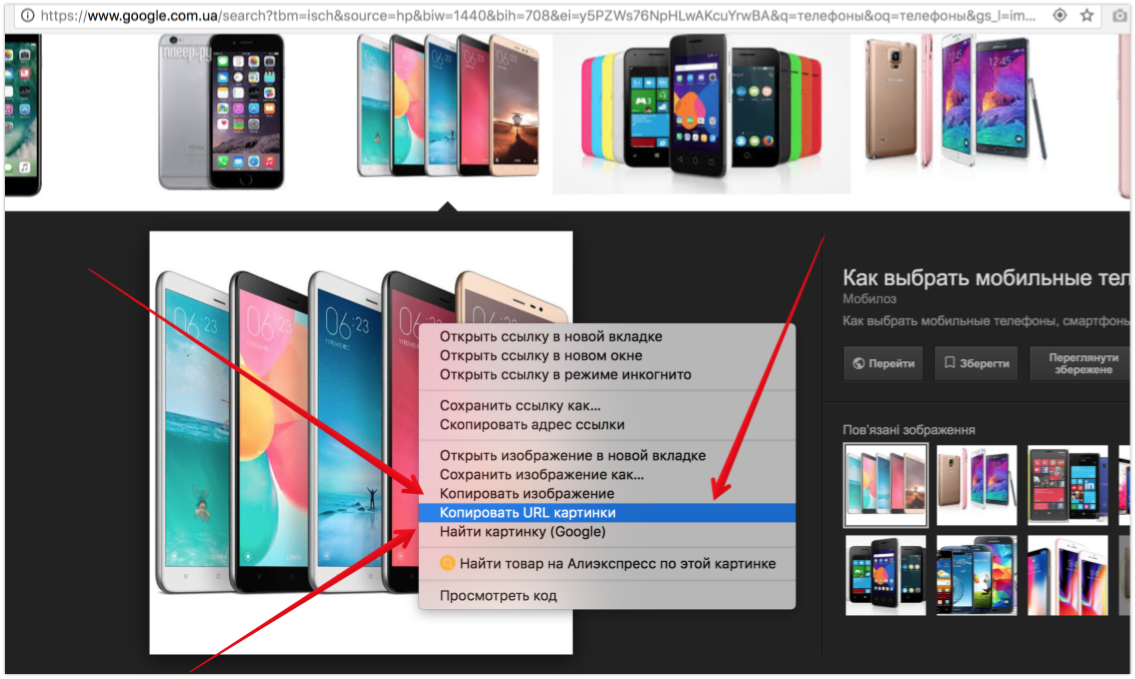
Second. You can find any image you like on Yandex Images or Google Images – https://www.google.com.ua/imghp
Enter any word on the topic you are searching images for. In the search results you will get a large number of images. Right-click any image and choose "Copy image URL" from the dropdown menu – it looks roughly like this:
After that just paste this link into the platform settings:

In the same way, you can view ready-made images for sliders in our slider gallery at – https://blog.openmall.info/blog/primery-slajdov/
If you want to upload an image from your computer:
You can use any image hosting service.
For example: go to https://hostingkartinok.com/register.php and sign up there.
Then go to the main page of this service – click Browse, choose the images on your computer, and then click Upload:

After that, copy the bottom-most link –

After that just paste this link into the platform settings:
If you have any questions, you can always contact our support team.
Alternative option.
For example: go to – http://piccy.info/
Click choose file – and select the image file you need on your computer:
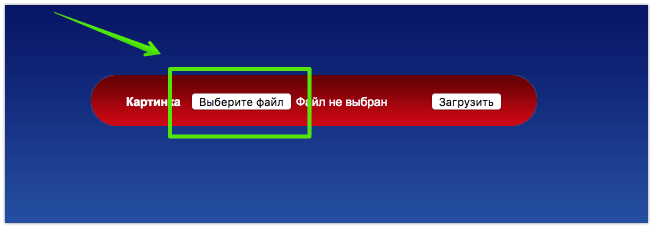
This service will generate a link to your image. On the next page there will be many link options for the image. You need to copy the link from the "Direct link" field:

After that just paste this link into the platform settings:
If you have any questions, you can always contact our support team.
Second option. If your site has an SSL certificate, there is another image service.
1) Sign up at – https://imgur.com/register
2) Enter a login, your email and the password twice. (ATTENTION: use only a gmail.com email; if you don't have one, register it first):

2) After that, click Sign In (in the top-right corner of the screen). You will enter the image hosting dashboard.

3) Then click the globe icon in the top right and choose Images from the menu:


5) Click Browse and choose the file on your computer that you want to upload:

6) Your just-uploaded image will appear in the image list. Click on it:

7) Copy the image link from here (specifically the second field titled Direct Link):

After that just paste this link into the platform settings:
How to upload images by link